As a software tester, I enjoy improving software quality even outside my direct responsibility. When I encounter an issue in third-party software, I don’t just work around it. I document it. Recently, I shared a structured bug report with a supplier after identifying a blocking issue during an automated update scenario. Not because it was required, but because quality improves when feedback is concrete, reproducible, and actionable.
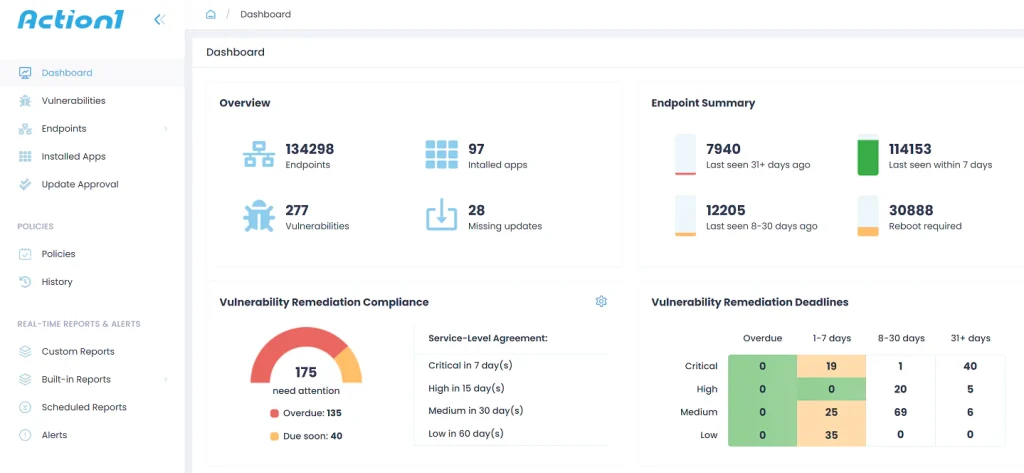
Action1 is a cloud based endpoint management and patching platform.
It allows IT teams to deploy software updates, manage devices, and remediate vulnerabilities remotely.
Action1 is commonly used for automated patch management, software deployment, and endpoint security operations.
Because Action1 is valuable software that is actively used in production environments, I shared this bug report to help improve the product and prevent similar issues for other users.
Dear Action1 team,
I am sharing a structured bug report to support further analysis:
Title
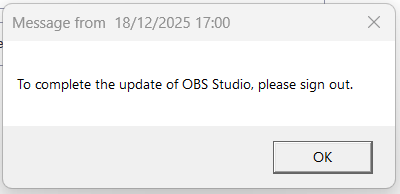
OBS Studio update message window cannot be closed during Action1 update, causing lock screen freeze or forced restart
Environment
- OS: Windows 11 25H2 Pro
- Action1 Agent version: 5.246.648.1 (or a bit of an earlier version, I have checked the version on 23/12/2025 while the bug happened on 18/12/2025)
- Application: OBS Studio
- Update type: Scheduled automatic update
Steps to reproduce 1. Schedule an automatic update of OBS Studio via Action1 Agent
2. Allow the update to run while the system is in one of the following states
- Windows is at the lock screen
- User is actively logged in
3. Observe the message window stating :”To complete the update of OBS Studio, please sign out.”
- Screenshot
Actual result
- When the message window appears on the Windows lock screen, clicking OK has no effect. The system becomes blocked and can only be recovered by restarting the operating system.
- When the message window appears during normal Windows operation, clicking OK has no effect. The window can only be closed by:
- Right clicking the application icon in the taskbar and selecting Close, or
- Terminating the process via Task Manager.
Expected result
- Clicking OK should immediately close the message window in all cases, both on the Windows lock screen and during normal Windows operation.
Severity
- High when Windows is in the lock screen state. The issue blocks user interaction and requires a full operating system restart, resulting in potential loss of work and interruption of normal operation. User login is no longer possible and recovery requires restarting the system from the lock screen.
Workaround
- Force close the application with a right click on the application in the taskbar or terminate application via Task Manager
- Restart the operating system if the issue occurs on the lock screen