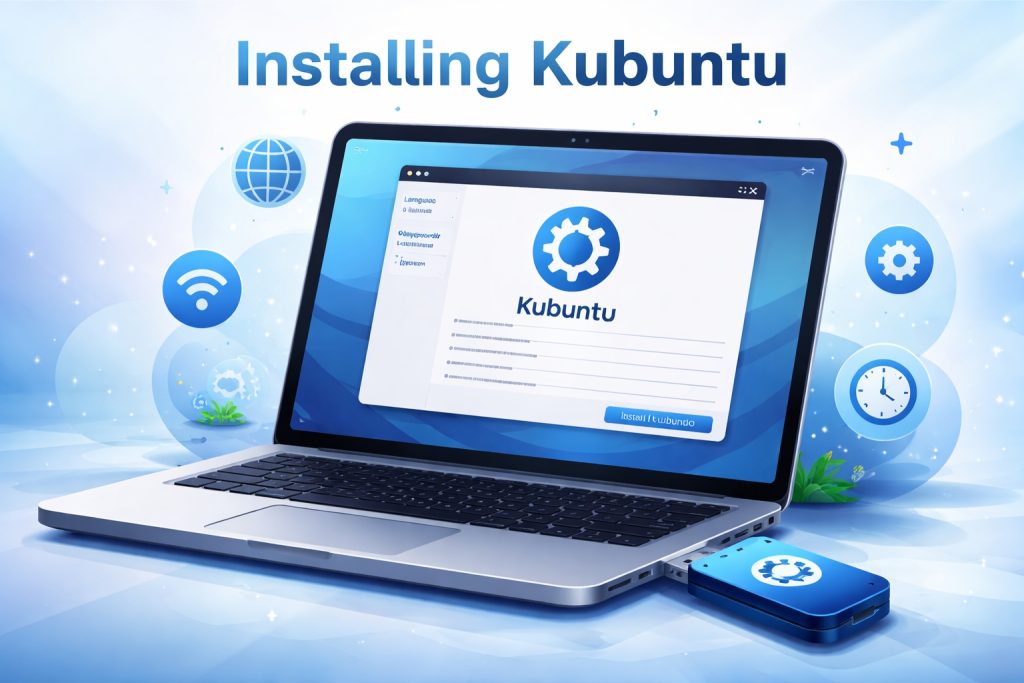
Kubuntu is an official Ubuntu flavour that combines the stability of Ubuntu with the flexibility and visual polish of the KDE Plasma desktop. It is designed for users who want a modern operating system that feels fast, clean, and highly configurable, without sacrificing reliability. Kubuntu works equally well on laptops, workstations, and virtual machines, making it a solid choice for daily work, development, and experimentation.
What sets Kubuntu apart is that it comes by default with the KDE Plasma desktop. The desktop is lightweight, responsive, and extremely customizable. You can adapt workflows, shortcuts, panels, and visual style to your own preferences, while still enjoying a system that behaves predictably and stays out of your way.
Why choose Kubuntu
Kubuntu is built on the same foundation as Ubuntu, which means long term support options, a huge software ecosystem, and excellent hardware compatibility. On top of that, KDE Plasma offers advanced window management, strong multi monitor support, and a settings center that exposes real control instead of hiding it.
For users coming from Windows, Kubuntu feels familiar without being restrictive. For power users, it offers deep configuration and strong tooling. For remote work and servers with a desktop, it stays efficient and stable.
What you need before installing
Before installing Kubuntu, you need a few basics:
A USB stick of at least 4 GB
A computer with a 64 bit processor
At least 4 GB of RAM, 8 GB recommended
Around 25 GB of free disk space
An internet connection for updates during installation
You also need the Kubuntu ISO file, which you can download from the official Kubuntu website.
Creating the installation USB
Download the Kubuntu ISO and write it to a USB stick using a reliable tool such as Rufus on Windows or Balena Etcher on Windows, macOS, or Linux. Use default settings. The result is a bootable installer that works on both modern UEFI systems and older machines.
Booting the installer
Insert the USB stick and reboot your computer. Open the boot menu or firmware settings and select the USB device. Kubuntu will start in a live environment, allowing you to test the desktop before installing.
From the live desktop, click the Install Kubuntu icon to start the installer.
Installing Kubuntu step by step
The Kubuntu installer is clean and straightforward.
First, select your language and keyboard layout.
Next, choose whether to connect to the internet and install updates during installation. This is recommended.
Then select the installation type. For most users, the option to erase disk and install Kubuntu is the easiest and safest choice. Advanced users can choose manual partitioning.
Set your time zone.
Create your user account and password.
Once confirmed, the installer copies the system to disk. This usually takes between 10 and 20 minutes depending on hardware.
First boot and initial setup
After installation completes, reboot and remove the USB stick. Kubuntu boots into the Plasma desktop. On first login, you can already start working.
From here, it is a good idea to run system updates via Discover or the terminal. You can also install additional software such as browsers, development tools, or remote access utilities.
Daily use and customization
Kubuntu shines in daily use. The system tray, application launcher, and window behavior can all be adjusted. Plasma allows you to keep things simple or tune everything in detail. For users who value stability, Kubuntu stays predictable. For users who like control, it goes deep without becoming fragile.
For people who want to stay within the Linux ecosystem, Kubuntu is an alternative to Windows 11.