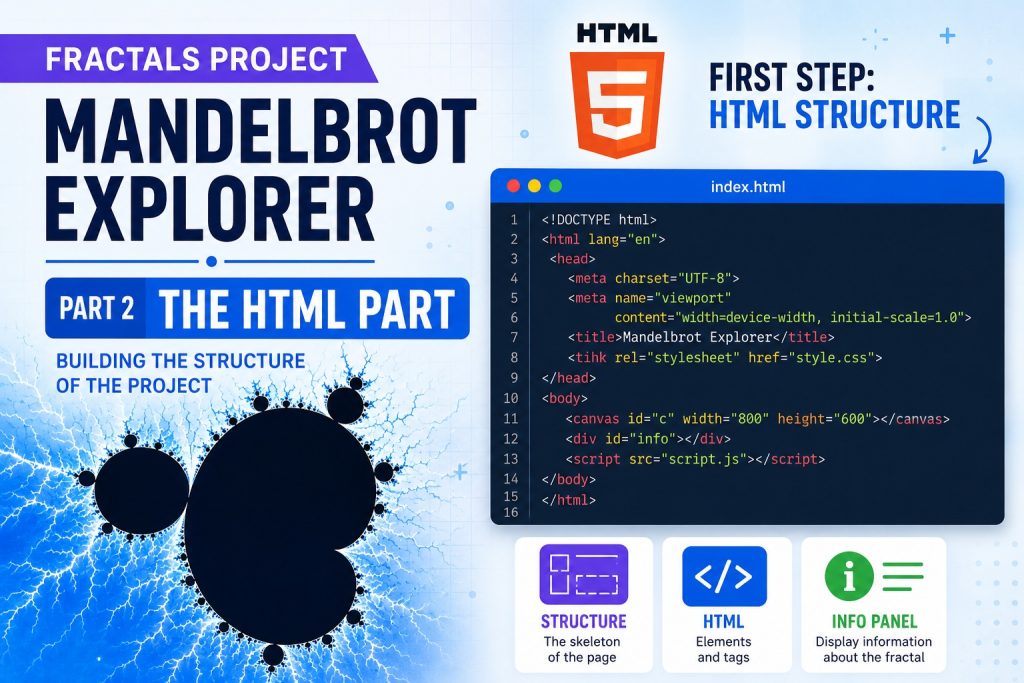
In the first part of this series, we introduced the Mandelbrot Explorer project and explained its overall goal. In this article, we take a closer look at the HTML structure that forms the foundation of the application. Although the page itself is relatively simple, every element has a specific purpose. By understanding the HTML first, it becomes much easier to follow the CSS styling and JavaScript functionality in the next parts of this series
index.html:
<!DOCTYPE html>
<html lang="en">
<head>
    <meta charset="UTF-8">
    <meta name="viewport" content="width=device-width, initial-scale=1.0">
    <title>Mandelbrot Explorer</title>

    <link rel="stylesheet" href="style.css">
</head>

<body>

<canvas id="c" width="800" height="600"></canvas>

<div id="info"></div>

<script src="script.js"></script>

</body>
</html><!DOCTYPE html>Declares that this document is an HTML5 document. Modern browsers use this to render the page in standards mode.
<html lang="en">This is the root element of the page.
The lang=”en” attribute tells browsers and search engines that the content is written in English. It also helps screen readers pronounce text correctly.
<head>The section contains information about the page. It is not displayed directly to the user.
<meta charset="UTF-8">Specifies that the page uses UTF-8 character encoding.
UTF-8 supports almost every character and symbol, making it the standard encoding for modern websites.
<meta name="viewport" content="width=device-width, initial-scale=1.0">Makes the page responsive on mobile devices.
width=device-width sets the page width to the device’s screen width.
initial-scale=1.0 displays the page at a normal zoom level.
Without this tag, many mobile browsers display websites as if they were designed for a large desktop screen.
<title>Mandelbrot Explorer</title>Defines the title shown:
- in the browser tab
- in bookmarks
- in search engine results
<link rel="stylesheet" href="style.css">Loads the external stylesheet.
Separating CSS from HTML makes the project easier to maintain because all visual styling is stored in one place.
</head>
<body>
The <body> contains everything that is visible to the user.
<canvas id="c" width="800" height="600"></canvas>Creates an HTML5 canvas element.
Unlike normal HTML elements, a canvas starts as an empty drawing surface. JavaScript is responsible for drawing every pixel.
Attributes:
id=”c” gives the canvas a unique identifier so JavaScript can access it.
width=”800″ sets the drawing width to 800 pixels.
height=”600″ sets the drawing height to 600 pixels.
The Mandelbrot fractal is rendered entirely inside this canvas.
<div id="info"></div>Creates an empty
that will display information about the current view.
JavaScript updates this element while the program is running, for example:
centerX = -0.500000
centerY = 0.000000
zoom = 200
iter = 100
<script src="script.js"></script>Loads the external JavaScript file.
When the page finishes loading, the browser executes the code inside script.js. This code:
- accesses the canvas
- calculates the Mandelbrot set
- draws the fractal
- handles mouse clicks
- processes zoom operations
- responds to keyboard input.
</body>
</html>
These closing tags indicate the end of the document.
Why is the HTML so short?
This project follows a common web development practice known as separation of concerns:
| File | Responsibility |
|---|---|
index.html | Defines the page structure and loads resources. |
style.css | Controls the appearance of the page. |
script.js | Implements the Mandelbrot algorithm and all interactive functionality. |
By separating the structure, presentation, and behaviour into different files, the project becomes easier to understand, maintain, and extend. This modular approach is widely used in modern web development and improves both readability and long term maintainability.