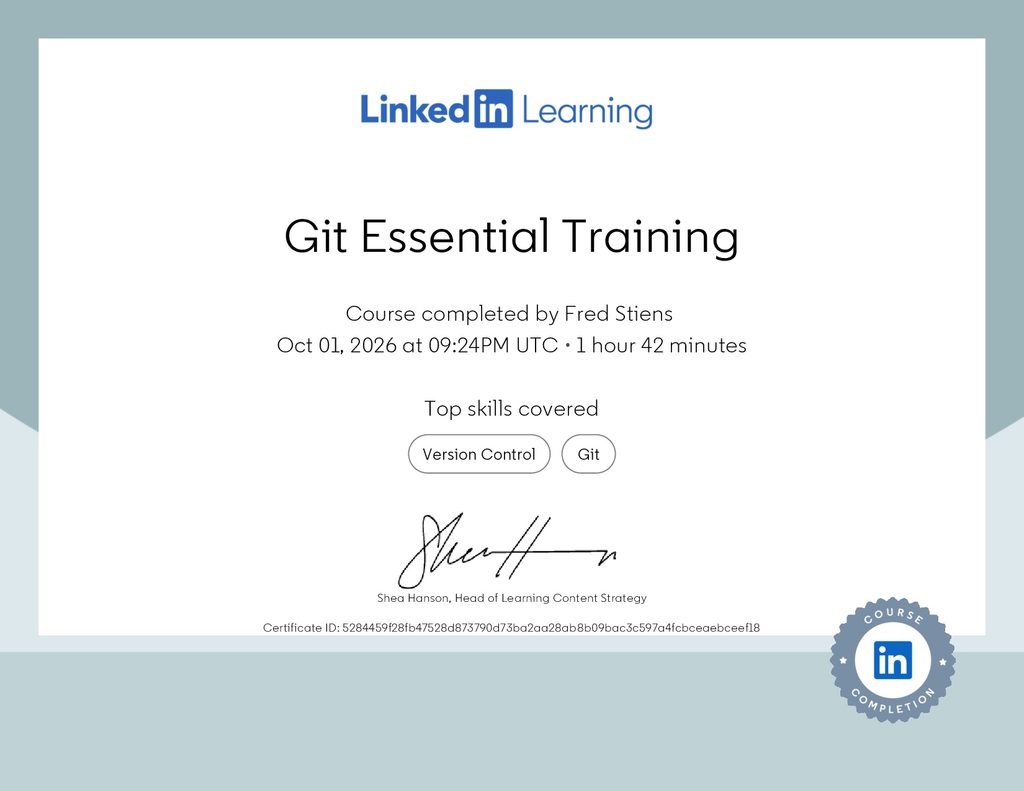
Learning Git by Actually Using It: From Theory to Practice with GitHub and Visual Studio Code
Git is one of the fundamental tools behind modern software development. Developers use it to manage source code, testers encounter it when working with test automation projects, and DevOps engineers rely on it throughout CI/CD workflows. I recently completed a Git course that covered both the theory behind version control and the practical use of Git. I did not want to simply watch the demonstrations and move on. For the practical exercises, I created my own working environment using a virtual machine, my own GitHub setup and Visual Studio Code as my Git client. That turned the course into a practical learning experience where I could immediately experiment with what I had learned.
Why Git?
The course started with the fundamentals: why do we actually need Git? At its core, Git is a version control system. It keeps track of changes to files and makes it possible to return to previous versions when necessary. But Git is also important for sharing code and collaborating with other people. Multiple developers can work on the same project without constantly exchanging files or manually keeping track of which version is the latest one. The course also introduced the idea of distributed version control. A local Git repository contains its own history, while a platform such as GitHub provides a remote location where repositories can be shared and synchronized. Understanding that distinction between local Git and GitHub was an important starting point.
Building my own practice environment
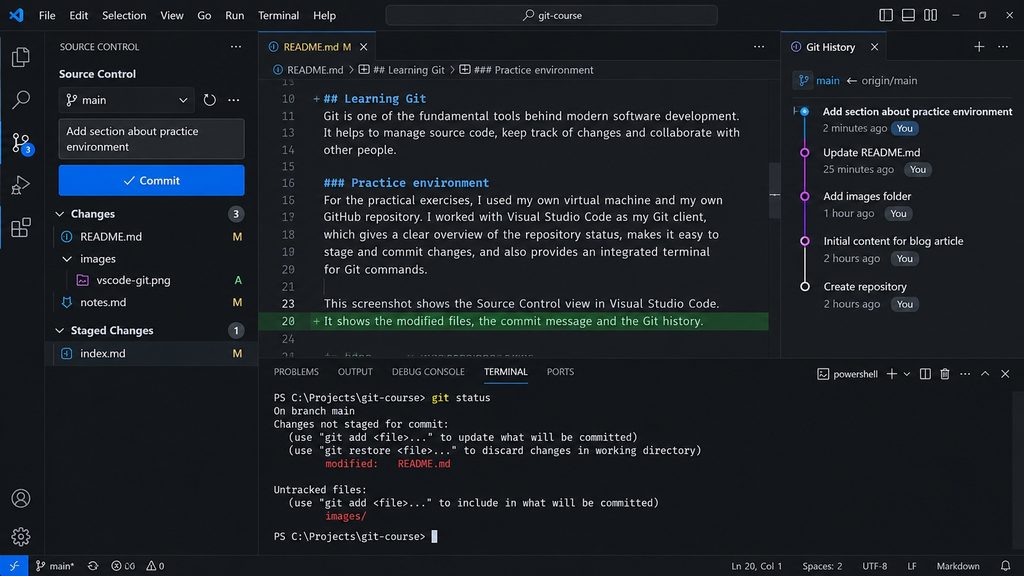
Rather than doing everything in a temporary training environment, I performed the exercises on my own virtual machine. I installed and configured Git there and connected my local work to my own GitHub environment. For the Git client, I used Visual Studio Code. This was particularly useful because Visual Studio Code provides an integrated Source Control interface while still allowing direct access to the Git command line through its terminal. I could therefore see Git from both perspectives. I could execute commands in the terminal and then immediately see how those operations were represented graphically inside Visual Studio Code. That helped connect the underlying Git concepts with the tools I would actually use while working on software projects.
Creating and working with repositories
Once the environment was ready, the course moved into the normal Git workflow. I practiced setting up remote repositories, forking repositories and cloning them to my virtual machine. From there, I created and modified files and followed the typical Git process:
Modify a file
↓
Check the repository status
↓
Stage the change
↓
Commit the change
↓
Push the commit
↓
GitHub
I also practiced the opposite direction by pulling changes from a remote repository back into my local environment.
This helped make the relationship between my working directory, my local Git repository and GitHub much clearer.
Working with files and changes
The course then explored what happens when a project starts changing. I practiced editing files, deleting files, renaming them and working with folders. I used Git status to see what Git detected and learned how changes move through the different stages before becoming part of the repository history. Visual Studio Code was useful here because its Source Control interface provides an immediate overview of modified files. At the same time, I continued using Git commands so that I understood what was actually happening underneath the graphical interface. The goal was not simply to learn where to click in Visual Studio Code. I wanted to understand Git itself.
Understanding Git history
One of the most interesting parts of the course was working with repository history. Every commit becomes part of that history, allowing you to inspect how a project evolved over time. I practiced viewing previous commits, navigating through the history and going back to earlier versions of files. The course also covered reverting commits. This is an important concept because Git is not simply an undo button. There is a difference between looking at an earlier commit, restoring previous content and creating a new commit that reverses an earlier change. Actually experimenting with these situations on my own repository made those differences much easier to understand.
Branches and pull requests
The course then introduced one of Git’s most important features: branches. Branches allow changes to be developed independently without immediately modifying the main version of a project. I practiced creating branches and making changes on them before working through the pull request process. This also introduced the collaboration workflow commonly used with GitHub. Instead of directly changing the main branch, work can be performed separately, reviewed and eventually merged. Even when working alone during the exercises, following this process was useful because it reproduced the workflow used in real software projects.
Resolving merge conflicts
Of course, collaboration does not always go perfectly. The course also covered merge conflicts. A merge conflict occurs when Git cannot automatically determine how different changes should be combined. Instead of making a potentially incorrect decision, Git asks the user to resolve the conflict. I practiced this process myself and used Visual Studio Code to inspect and resolve conflicting changes. This was one of the areas where having both theoretical explanations and practical exercises was particularly valuable. A merge conflict can initially look complicated, but once you understand why Git created it and what the conflicting sections represent, the process becomes much more logical. You decide what the resulting file should contain, resolve the conflict and commit the result.
Important Git concepts
The course also covered several concepts that are easy to overlook when first learning Git. I learned how .gitignore can prevent files that do not belong in a repository from being tracked. The course also explained the purpose of the .git folder, which contains the information Git needs to manage the repository. Another topic was writing useful commit messages. A repository history becomes much more valuable when commits clearly describe what changed instead of containing meaningless messages. These might seem like small details, but they become increasingly important as projects grow.
Learning by doing
The biggest benefit of the course was the combination of theory and practice. Watching somebody demonstrate Git commands gives you an introduction, but actually performing the operations yourself provides a different level of understanding. Using my own virtual machine meant I had a real environment where I could experiment freely. Using my own GitHub environment gave me practical experience with remote repositories. Visual Studio Code gave me a modern Git client where I could see the state of the repository while still having the command line available whenever I wanted it. And sometimes something did not behave exactly as expected. That was actually useful. Instead of only following a perfect demonstration, I had to inspect the repository, check its status, understand what Git was telling me and determine the next step. That is much closer to how Git is used in real projects.
Another step toward software development and test automation
After completing the course, I have a much clearer understanding of the complete basic Git workflow. I have now practiced working with local and remote repositories, staging and committing changes, pushing and pulling, Git history, reverting changes, branches, pull requests and merge conflicts. More importantly, I practiced those concepts in my own environment using Git, GitHub and Visual Studio Code together. Git is something I expect to use extensively in software testing, test automation and software development. Having practical experience with the workflow gives me a stronger foundation for future projects and for the next technologies I want to learn.