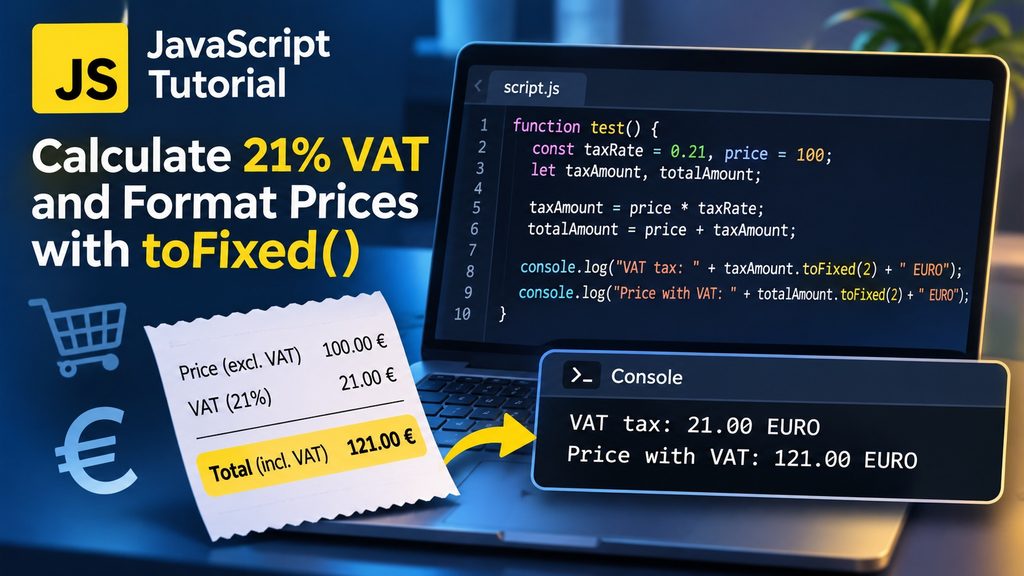
JavaScript is not only useful for creating interactive websites. It can also perform mathematical calculations, process financial data, and format numerical results.
In this tutorial, we will create a simple JavaScript function that calculates 21% Value Added Tax (VAT) on a product, adds the tax to the original price, and displays the results in euros with exactly two decimal places.
Along the way, we will explore several fundamental JavaScript concepts, including constants, variables, arithmetic operators, string concatenation, and the toFixed() method.
1. The Complete JavaScript Code
Let’s begin with our example.
function test() {
    const taxRate = 0.21, price = 100;
    let taxAmount, totalAmount;

    taxAmount = price * taxRate;
    totalAmount = price + taxAmount;

    console.log("VAT tax: " + taxAmount.toFixed(2) + " EURO");
    console.log("Price with VAT: " + totalAmount.toFixed(2) + " EURO");
}
To execute the function, we need to call it:
test();The output in the browser’s developer console will be:
VAT tax: 21.00 EURO
Price with VAT: 121.00 EURO
Let’s examine how this works.
2. Understanding the Function Declaration
The first line of our program is:
function test() {The keyword function declares a JavaScript function.
A function is a reusable block of code that performs a particular task. In this example, our function calculates VAT and displays the results.
The name test identifies the function. The parentheses () are used to define parameters, although our function does not require any.
The curly braces {} contain the statements that belong to the function.
One important detail is that declaring a function does not automatically execute it. We must call it explicitly:
test();Every time we call test(), JavaScript executes the statements inside the function.
3. Declaring Constants with const
Our first statement inside the function is:
const taxRate = 0.21, price = 100;Here, we declare two constants using the const keyword.
| Constant | Value | Meaning |
|---|---|---|
taxRate | 0.21 | VAT rate of 21% |
price | 100 | Original price in euros |
The value 0.21 represents 21%.
Percentages must be divided by 100 before they can be used as decimal multipliers.
For example:
| Percentage | JavaScript value |
|---|---|
| 6% | 0.06 |
| 9% | 0.09 |
| 12% | 0.12 |
| 21% | 0.21 |
We use const because the values of taxRate and price will not be reassigned during the execution of our function.
JavaScript allows multiple constants to be declared in one statement by separating them with commas.
We could also write:
const taxRate = 0.21;
const price = 100;
Both approaches are correct.
An important characteristic of const is that a variable declared this way cannot be reassigned after initialization.
For example:
const taxRate = 0.21;
taxRate = 0.06; // TypeError
This prevents accidental reassignment of values that should remain unchanged.
4. Declaring Variables with let
Next, we declare two variables:
let taxAmount, totalAmount;The let keyword declares variables whose values can be assigned or reassigned.
In our example:
taxAmountwill store the calculated VAT.totalAmountwill store the price including VAT.
At the moment of declaration, neither variable has been assigned a value. Both therefore contain undefined.
Later in the function, we assign calculated values to them.
Unlike const, variables declared with let do not need to be initialized immediately.
5. Calculating the VAT Amount
The next statement performs our first mathematical calculation.
taxAmount = price * taxRate;The asterisk * is the multiplication operator in JavaScript.
We multiply the original price by the VAT rate.
The calculation is:
taxAmount = 100 * 0.21
taxAmount = 21
The result is assigned to the variable taxAmount.
Notice that we do not write let again. The variable has already been declared.
At this point, our program knows that the VAT amount is 21 euros.
6. Calculating the Total Price Including VAT
Next, we calculate the final price:
totalAmount = price + taxAmount;The plus sign + is used here as the arithmetic addition operator.
The calculation becomes:
totalAmount = 100 + 21
totalAmount = 121
The result is stored in totalAmount.
We now have all the information required to display the results.
7. Displaying Information with console.log()
JavaScript provides the console.log() method for writing information to the developer console.
Our first output statement is:
console.log("VAT tax: " + taxAmount.toFixed(2) + " EURO");The console.log() method is frequently used during software development to inspect variable values, verify calculations, and troubleshoot problems.
In most browsers, you can open the developer tools by pressing F12 and selecting the Console tab.
Combining text with variables
Notice the use of the plus operator:
"VAT tax: " + taxAmount.toFixed(2) + " EURO"In addition to mathematical addition, JavaScript uses + for string concatenation.
String concatenation means joining multiple strings together.
Our expression combines three elements:
- The text
"VAT tax: " - The formatted value of
taxAmount - The text
" EURO"
The resulting string is:
VAT tax: 21.00 EUROThis is the information displayed by console.log().
8. Formatting Decimal Numbers with toFixed()
One of the most useful methods in our example is:
taxAmount.toFixed(2)The toFixed() method formats a number using a specified number of digits after the decimal point.
The argument 2 means that we want exactly two decimal places.
Consider the following example:
let amount = 21;

console.log(amount.toFixed(0));
console.log(amount.toFixed(1));
console.log(amount.toFixed(2));
console.log(amount.toFixed(3));
Output:
21
21.0
21.00
21.000
This is particularly useful when displaying monetary amounts.
Without formatting, JavaScript would display our VAT amount as 21.
With toFixed(2), it displays 21.00.
Does toFixed() round numbers?
Yes. The toFixed() method rounds numbers to the requested number of decimal places.
For example:
let amount = 12.345;

console.log(amount.toFixed(2));
Output:
12.35However, JavaScript uses binary floating point arithmetic, so some decimal numbers cannot be represented exactly. This can occasionally produce unexpected rounding behavior.
For financial applications requiring strict decimal accuracy, additional precautions or decimal arithmetic libraries may be necessary.
Important: toFixed() returns a string
Although taxAmount is a number, toFixed() returns a string.
We can demonstrate this using the typeof operator:
let amount = 21;

console.log(typeof amount);
console.log(typeof amount.toFixed(2));
Output:
number
string
This distinction is important.
Consider:
let amount = 21;

console.log(amount + 10);
console.log(amount.toFixed(2) + 10);
Output:
31
21.0010
The first expression performs mathematical addition.
The second expression performs string concatenation because toFixed(2) returns a string.
Therefore, it is generally better to perform calculations using numerical values and apply toFixed() only when displaying the results.
9. Displaying the Total Price Including VAT
Our final statement is:
console.log("Price with VAT: " + totalAmount.toFixed(2) + " EURO");This works exactly like our previous output statement.
The variable totalAmount contains the number 121.
Calling:
totalAmount.toFixed(2)produces the string "121.00".
JavaScript combines the strings and displays:
Price with VAT: 121.00 EUROWe have successfully calculated and displayed both the VAT amount and the final price.
10. Improving the Code with Template Literals
Modern JavaScript provides a more readable alternative to traditional string concatenation.
Instead of writing:
console.log("VAT tax: " + taxAmount.toFixed(2) + " EURO");We can use a template literal:
console.log(`VAT tax: ${taxAmount.toFixed(2)} EURO`);Template literals use backticks instead of quotation marks.
The ${} syntax allows us to insert variables and expressions directly into a string.
We can therefore rewrite our function as follows:
function test() {
    const taxRate = 0.21;
    const price = 100;

    const taxAmount = price * taxRate;
    const totalAmount = price + taxAmount;

    console.log(`VAT tax: ${taxAmount.toFixed(2)} EURO`);
    console.log(`Price with VAT: ${totalAmount.toFixed(2)} EURO`);
}

test();
This version is slightly more readable and uses const for the calculated values because they are assigned only once.
Both versions produce exactly the same output.
11. Bonus: Formatting Prices as Euros with Intl.NumberFormat
JavaScript provides a built-in internationalization API called Intl.NumberFormat.
This API can format numbers according to regional conventions.
For example, Belgium commonly uses a comma as the decimal separator and places the euro symbol after the amount.
We can format our values using:
const formatter = new Intl.NumberFormat("nl-BE", {
    style: "currency",
    currency: "EUR"
});

console.log(formatter.format(21));
console.log(formatter.format(121));
The formatted results are:
21,00 €
121,00 €
This approach is particularly useful for international websites and applications.
Instead of manually adding " EURO" to our output, JavaScript handles the currency symbol, decimal separator, and regional formatting.
The Intl.NumberFormat API is generally preferable when formatting currencies for users in different countries.
12. Conclusion
In this tutorial, we created a JavaScript function that calculates 21% VAT and displays the results in euros.
We learned how to declare constants with const, create variables with let, perform mathematical calculations, and display information using console.log().
We also explored string concatenation and learned how the toFixed() method formats numbers with a specified number of decimal places.
Finally, we improved the original code using template literals and introduced Intl.NumberFormat for currency formatting.
These fundamental JavaScript concepts are useful in many real-world applications, including online shops, invoicing systems, financial dashboards, and accounting software.
Next exercise: Modify the function so that it accepts the product price and VAT rate as parameters. Try calculating the final price for products with different prices and VAT rates, such as 6%, 12%, and 21%.