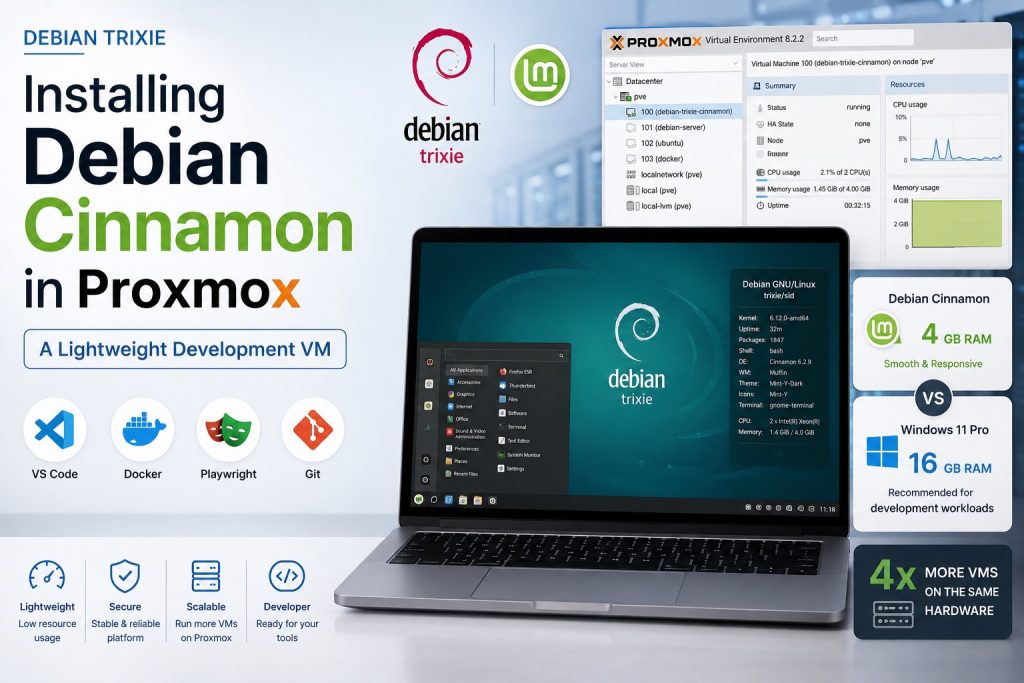
Debian is one of the most stable Linux distributions available today and an excellent choice for development, software testing and self hosted infrastructure. In this tutorial, we install Debian with the Cinnamon desktop environment as a virtual machine in Proxmox VE. The result is a lightweight desktop that is ideal for development tools such as Visual Studio Code, Playwright, Docker and many other applications.
Why I Chose Debian Cinnamon
For my development virtual machines, I chose Debian with the Cinnamon desktop instead of Windows 11 or a minimal Linux desktop.
Much Lower Memory Requirements
The main reason is memory consumption.
Microsoft officially lists relatively modest minimum requirements for Windows 11 of 4GB, but in practice a development workstation often includes: Antivirus solution, Visual Studio Code, Multiple browser tabs, Git, Development tools, Background services
Although Windows 11 can certainly run with less memory, I generally find that allocating around 16 GB of RAM for a Windows 11 Pro VM is a practical minimum for a smooth experience for software development.
Debian Cinnamon, on the other hand, remains very responsive with only 4 GB of RAM for many development tasks.
When running virtual machines on a Proxmox server, this difference becomes significant.
Suppose your hypervisor has 64 GB of RAM available.
| Operating System | Typical VM Memory | Maximum Number of VMs |
|---|---|---|
| Windows 11 Pro | 16 GB | 4 |
| Debian Cinnamon | 4 GB | 16 |
In other words, the same hardware can host approximately four times as many Debian Cinnamon virtual machines. For a home lab, testing environment or development server, that is a considerable advantage.
Familiar Desktop Environment
Another reason is the Cinnamon desktop itself. I find LXCE desktop a too minimal for daily development work. While it consumes slightly less memory, it lacks many of the usability features I appreciate during development sessions.
Cinnamon provides a modern desktop environment with:
- A familiar workflow similar to Windows
- Good multi monitor support
- Comfortable file management
- Excellent stability
- Low resource consumption
For me, it offers a good balance between performance and usability.
How to Install Debian Cinnamon as a Virtual Machine in Proxmox
For this installation I used the official Debian installation ISO with the graphical installer.
Prerequisites
Before starting, make sure you have:
- A running Proxmox VE server
- The latest Debian installation ISO uploaded to the Proxmox ISO storage
- A virtual machine with at least:
- 2 CPU cores
- 4 to 8 GB RAM
- 32 GB storage
- VirtIO network adapter
Where to download Debian iso?
At time of writing the latest Debian version is Debian Trixie.
https://www.debian.org/distrib
Choose: debian-13.6.0-amd64-DVD-1.iso
| Option | Size | Offline capable? | Performance vs size |
|---|---|---|---|
| netinst | ~700MB | No, downloads everything during install | Slower install, needs solid internet |
| DVD-1 | ~4GB | Mostly, covers base system + many common packages | Faster than netinst, covers most needs |
| Full DVD set (multiple ISOs) | ~50GB+ | Fully offline | Overkill for this use case |
I prefer to download the dvd-1 installer instead of the net installer so the installation is faster and doesn’t need to download too much packages during installation.
Start the Installer
Boot the virtual machine from the Debian installation ISO.
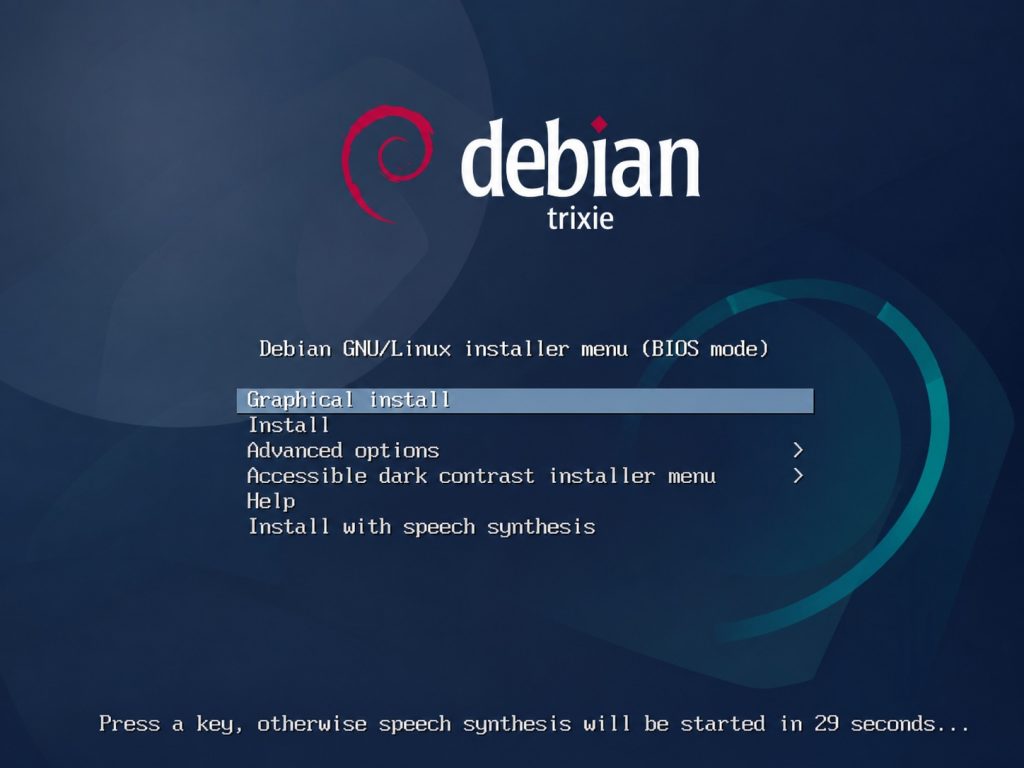
Select:
Graphical install
Configure the installer as follows.
| Setting | Value |
|---|---|
| Language | English |
| Location | Other |
| Continent | Europe |
| Country | Belgium |
| Locale | United States (en_US.UTF 8) |
| Keyboard | American English |
The installer automatically detects the hardware and loads the required installation components.
Configure the Network
Enter a hostname for the virtual machine.
| Setting | Value |
|---|---|
| Hostname | Choose a hostname |
| Domain | Leave empty |
Create User Accounts
Choose a root password.
Next create your regular user account.
| Setting | Value |
|---|---|
| Full name | Leave empty or enter your name |
| Username | Choose a username |
| Password | Choose a strong password |
The installer now configures the system clock automatically.
Partition the Virtual Disk
Choose:
Guided, use entire disk
Select your virtual disk.
Example:
/dev/sda
Choose the partition layout:
All files in one partition (recommended for new users)
If the virtual machine is running inside Proxmox, there is generally no need to create an additional LVM inside Debian because Proxmox already manages storage at the hypervisor level.
Select:
Finish partitioning and write changes to disk
Confirm:
Yes
Debian now installs the base operating system. This may take several minutes.
Configure the Package Manager
Choose the following options.
| Setting | Value |
|---|---|
| Scan additional installation media | No |
| Country | Belgium |
| Debian mirror | deb.debian.org |
| HTTP proxy | Leave empty |
When asked whether to participate in the package popularity survey, select:
No
Install the Cinnamon Desktop
One of the final installation screens is Software selection. This determines which desktop environment Debian installs.
Select the following options:
- Debian desktop environment
- Cinnamon
- SSH server
- Standard system utilities
Leave the other desktop environments unchecked.
This installs the complete Cinnamon desktop during the installation process, eliminating the need for additional desktop installation commands afterwards.
Install the Boot Loader
When prompted:
Install the GRUB boot loader to your primary drive?
Select:
Yes
Install GRUB on:
/dev/sda
The installer now completes the installation and restarts the virtual machine.
Boot from the Virtual Disk
After the first successful boot:
- Shut down the virtual machine.
- Disconnect the Debian installation ISO from the virtual CD ROM.
- Change the boot order so the virtual hard disk boots first.
- Start the virtual machine again.
You should now be greeted by the Cinnamon login screen.
Create a Clean Snapshot
Before installing any additional software, create a snapshot in Proxmox.
A snapshot named Clean Install provides an easy recovery point whenever you want to experiment or start over without reinstalling Debian.
Configure the Online Package Repositories
If Debian was installed from a DVD image, the package sources may still point to the installation media.
Open the sources list.
sudo nano /etc/apt/sources.list
Replace the installation media entries with the official Debian online repositories.
After saving the file, update the package database.
sudo apt update
sudo apt upgrade
Final Result
After completing these steps you will have:
- A clean Debian installation
- The Cinnamon desktop environment
- SSH access
- Standard system utilities
- A Proxmox snapshot for quick recovery
- The official Debian online repositories configured
This virtual machine provides an excellent foundation for software development, Playwright testing, Visual Studio Code, Docker containers, automation projects and many other Linux based workloads.